
Communities: a more intuitive way to use NEO

In Édifice’s digital platforms, when teachers want to create an educational resource and share it with a group of students, they first need to go to the relevant application (Lecture and Wiki, Mind Map, Timeline, etc.), create the resource, and then share it with the target group. But what if we reversed this logic to save teachers time and make the platform more intuitive for students? This is exactly what the new version of the Communities application offers!
With this 2026 version, everything starts with the community: you create a space for a class or a student group, and then share resources, documents, and information directly from the Communities application. A more intuitive system for students and a faster workflow for teachers. Let’s walk through this new way of working step by step.
1 – Creating a community
Start by creating your first community. The homepage offers two options:
- Create a community dedicated to a student group or a subject: mathematics for Year 12, geography for Year 10, German for Year 8, etc.
- Create a thematic community: chess club, drama workshop, sports association, or a group of English teachers in a school district, etc.
What distinguishes these two types of communities is their lifespan and management style:
- A community created for a class or teaching group is automatically archived at the end of the school year. Don’t worry: shared content (documents, resources, etc.) is preserved and remains accessible in the platform, but members no longer have access to the active space.
- A thematic community (club, project, teaching team, etc.) is not archived, and members can leave it freely.
2 – Customizing communities for easier navigation
You can choose a visual banner to represent the subject or theme of the community and make navigation easier for students. If the available banners don’t suit you, you can also upload your own image.
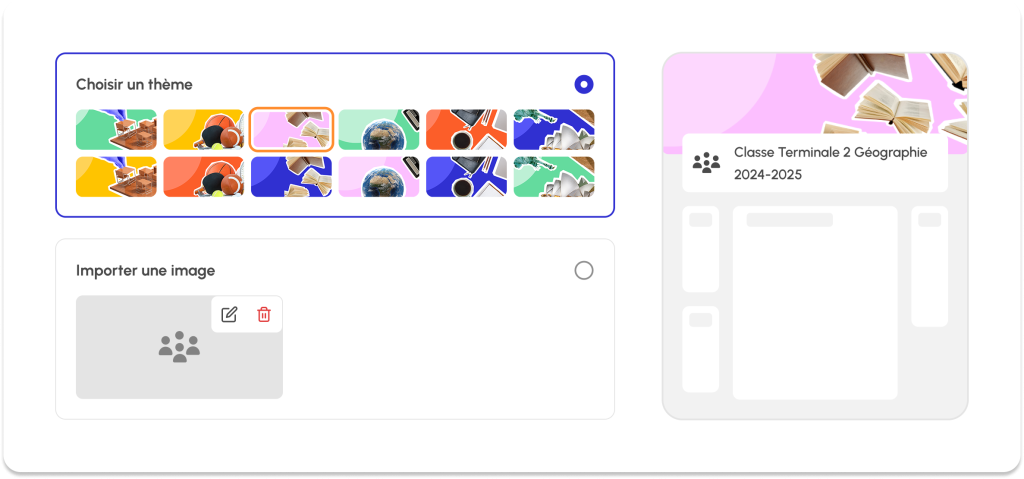
A useful tip: if you teach French to several Year 10 classes, you can use different colored banners to quickly distinguish between groups like 10A and 10B.
You can also write a welcome message, which will appear on the community homepage.
On this same page, announcements appear in the center: information messages, updates about resources, and more.
3 – A community made up of students… but not only!
You can add students to your community—such as a class or teaching group. They receive a notification in a dedicated tab, but they cannot refuse the addition: they are automatically enrolled and cannot leave the community.
However, to encourage students to become active participants in their learning, they can also request to join a community individually. This can be done either by scanning a QR code or entering an access code. These can be generated from the member management page. The student’s request is then sent to a manager for approval.
You can also add other platform users, for example as co-managers of the community. They can then share resources, messages, and manage access rights just like you.
4 – Centralizing resources in one place
Congratulations—you are now managing your first community! It becomes a virtual extension of the classroom and centralizes communication and sharing.
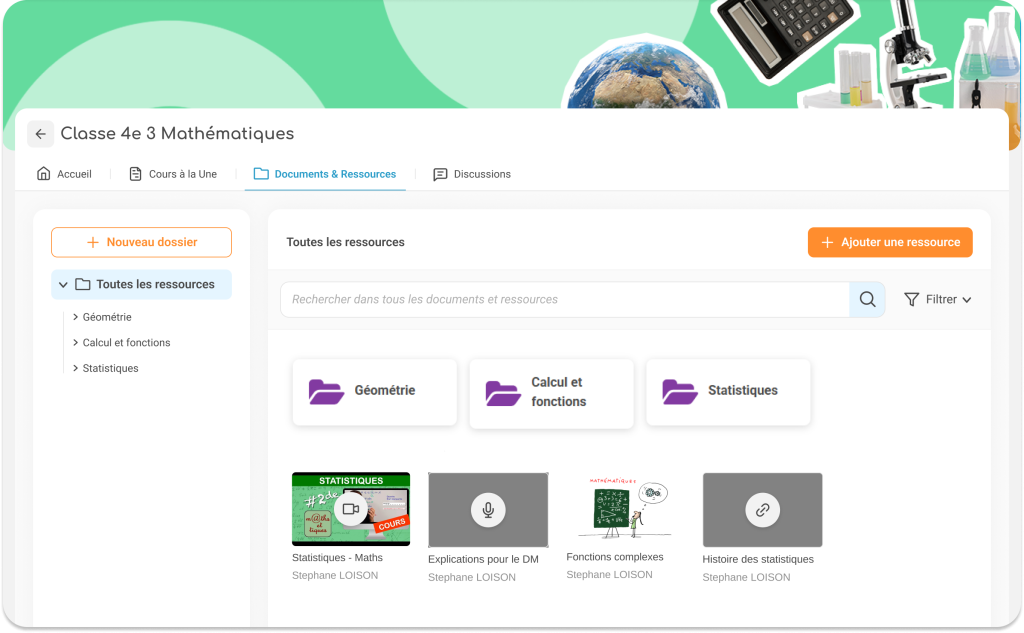
The goal is to simplify platform usage for both teachers and students: they no longer need to search for shared resources across multiple applications. Instead, they simply go to the relevant community to find all information in one place.
You can then populate the community. The application is primarily designed for secondary school teachers. Accordingly, a “Course and Wiki” tab allows you to upload existing lessons or create new pages directly within the community. You can update content over time as needed.
The “Documents and Resources” tab allows you to share:
- resources created within platform applications (Pad, Collaborative noticeboard, Mind map, Multimedia notebook, Blog, etc.)
- files such as videos, audio, images, PDFs (from your document space or uploaded directly)
- audio and video recordings created in the Studio
- external links
- and soon, resources from the Mediacenter (if available)
These resources are accessible to students within the tab, with icons indicating the type of content (audio, video, link, etc.).
5 – Creating resources directly from Communities
As mentioned, Communities reverses the usual platform workflow. If you want to create a timeline for a “History – Grade 11” community, you no longer need to leave the community and open another application. Instead, click “Applications” within the “Add resource” window, choose the Timeline application, and create it directly.
If you want to share this timeline with another group, you can simply manage access rights and grant viewing or editing permissions to other users or communities. The resource remains stored in its original application, so you can always find it later in “My Apps.” When a community is archived at the end of the year, the owner retains access, but members do not.
6 – Encouraging student interaction
Just like in a physical classroom, student interaction is important within a community. A dedicated “Discussions” tab acts like a forum, allowing users to create thematic conversations open to all members or restricted to managers only.
Teachers and community managers act as moderators and can delete inappropriate messages. If you prefer not to enable discussions, you can disable this feature when creating the community.
The “Discussions” tab will be available soon in the Communities app—stay tuned.
7 – Access via the mobile app
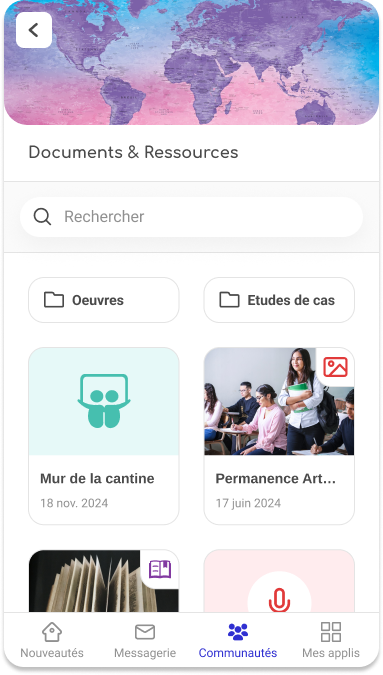
To encourage students to regularly check their communities, the application is available via mobile apps (NEO Pocket, PCN, ENT77, etc.). This allows students to access communities on the go, review lessons, or react to new announcements.
comments
Add comment